Modified On :
September 28, 2026
Key Takeaways
- A clear Ideal Customer Profile (ICP) is the foundation for booking high-quality B2B meetings on LinkedIn.
- LinkedIn Sales Navigator outperforms standard LinkedIn search with advanced filters, lead recommendations, and real-time updates.
- Organizing and saving LinkedIn leads into account lists, lead lists, and syncing with your CRM keeps outreach structured and efficient.
- Pre-connection engagement — likes, comments, and profile views — warms up prospects before sending a request.
- Short, personalized LinkedIn messages with clear context and relevance drive higher acceptance rates.
- A structured post-connection messaging sequence nurtures interest, moves leads into your CRM, and turns conversations into booked meetings.
If you’ve ever tried to book quality B2B meetings, you know it’s not as easy as sending out a few connection requests and waiting for replies.
Most decision-makers are busy, inboxes are crowded, and generic outreach rarely makes it past the first message.
That’s where LinkedIn Sales Navigator changes the game.
Unlike basic LinkedIn search, it’s built for hyper-targeted lead generation, letting you find the exact decision-makers you want to connect with — filtered by role, company size, industry, and more.
At Cleverly, we’ve spent years refining a LinkedIn Sales Navigator leads workflow that consistently books meetings with the right prospects — not just anyone who accepts a connection.
In this blog, we’ll walk you step-by-step through the exact process we use to:
- Identify your ideal buyers
- Build a high-quality lead list inside Sales Navigator
- Personalize outreach that actually gets replies
- Turn conversations into booked B2B meetings
By the end, you’ll have a clear, repeatable workflow you can use to bring in better leads and higher-quality opportunities, the same one trusted by 10,000+ B2B companies we’ve worked with.
Why LinkedIn Sales Navigator is the Goldmine for B2B Leads
If you’ve ever relied on regular LinkedIn search, you’ve probably hit its limits pretty fast. You can find people, sure — but filtering is basic, search results can be inconsistent, and you spend hours sifting through profiles that don’t quite match your target.
LinkedIn Sales Navigator takes that frustration out of the equation. It’s designed for one thing. finding and managing high-quality LinkedIn Sales Navigator leads with precision.
Here’s why it’s far superior to the standard search:
- Advanced Filtering – Go beyond location and job title. With over 30+ filters, you can combine parameters like seniority level, company headcount, revenue range, and even recent LinkedIn activity. This means you’re only spending time on prospects who actually match your ideal customer profile.
- Lead Recommendations – Once you start saving leads, Sales Navigator’s AI suggests similar decision-makers you might have missed. It’s like having a smart assistant constantly adding new, relevant prospects to your list.
- Real-Time Updates – See when a saved lead changes jobs, posts content, or shares company news. These updates give you natural conversation starters and help you reach out at the perfect time.
In short, LinkedIn Sales Navigator leads aren’t just “contacts.” They’re carefully filtered, relevant, and timely, exactly the kind of people you want to fill your calendar with high-value B2B meetings.
🎯 Sales Navigator + Our Outreach = Meetings
We turn advanced searches into real conversations with decision-makers. Start generating leads today from just $397/month.
Tools You’ll Need to Follow This Sales Navigator Lead Workflow
Before we jump into the step-by-step LinkedIn Sales Navigator leads workflow, let’s get your toolkit ready.
Here’s what you’ll need:
1. LinkedIn Sales Navigator
The core of this workflow. This is where you’ll run advanced searches, save leads, and get real-time updates on their activity. Without Sales Navigator, you can’t achieve the level of targeting we’re going to cover.
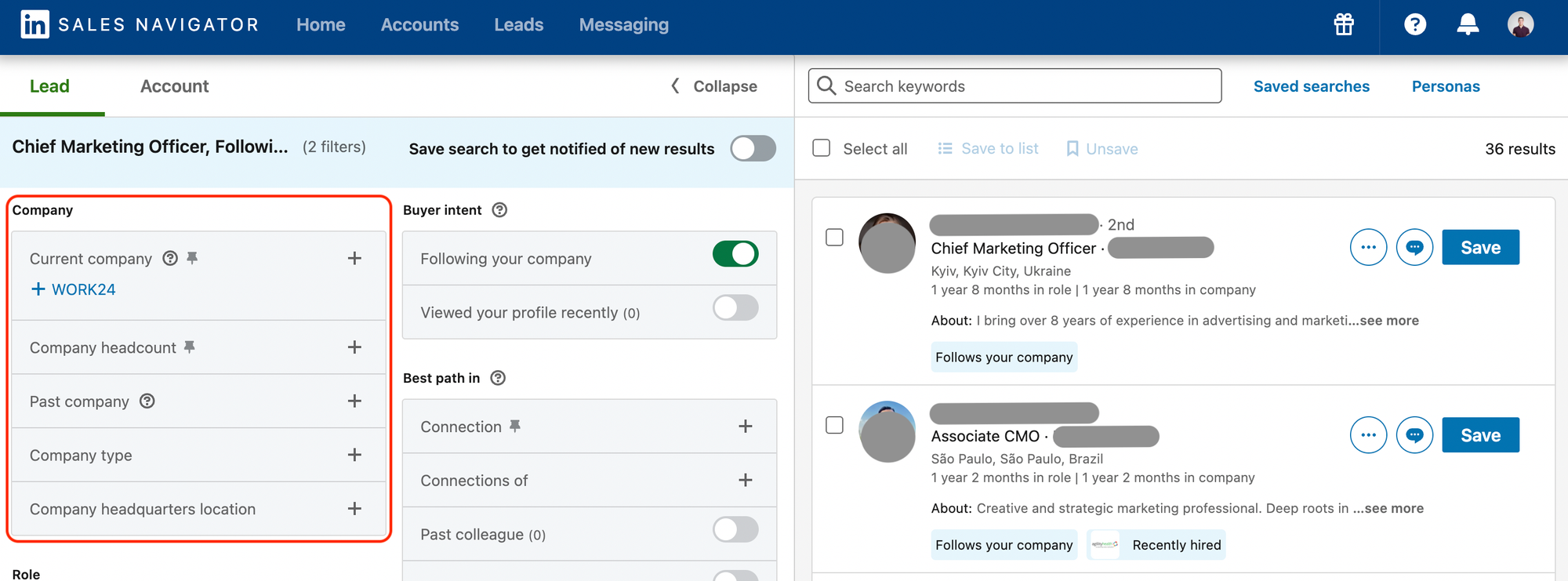
2. CRM (Customer Relationship Management System)
You need a centralized place to store your leads, track outreach, and manage deal stages. Popular choices include:
- HubSpot (free and paid versions)
- Pipedrive
- Salesforce
A CRM prevents you from contacting the same lead twice, helps track replies, and makes reporting easier.
3. LinkedIn Inbox / InMail Access
You’ll be sending most of your initial outreach on LinkedIn, so you need easy access to connection requests, follow-up messages, and InMail for prospects outside your network.
4. Email Finder Tool (Optional but Recommended)
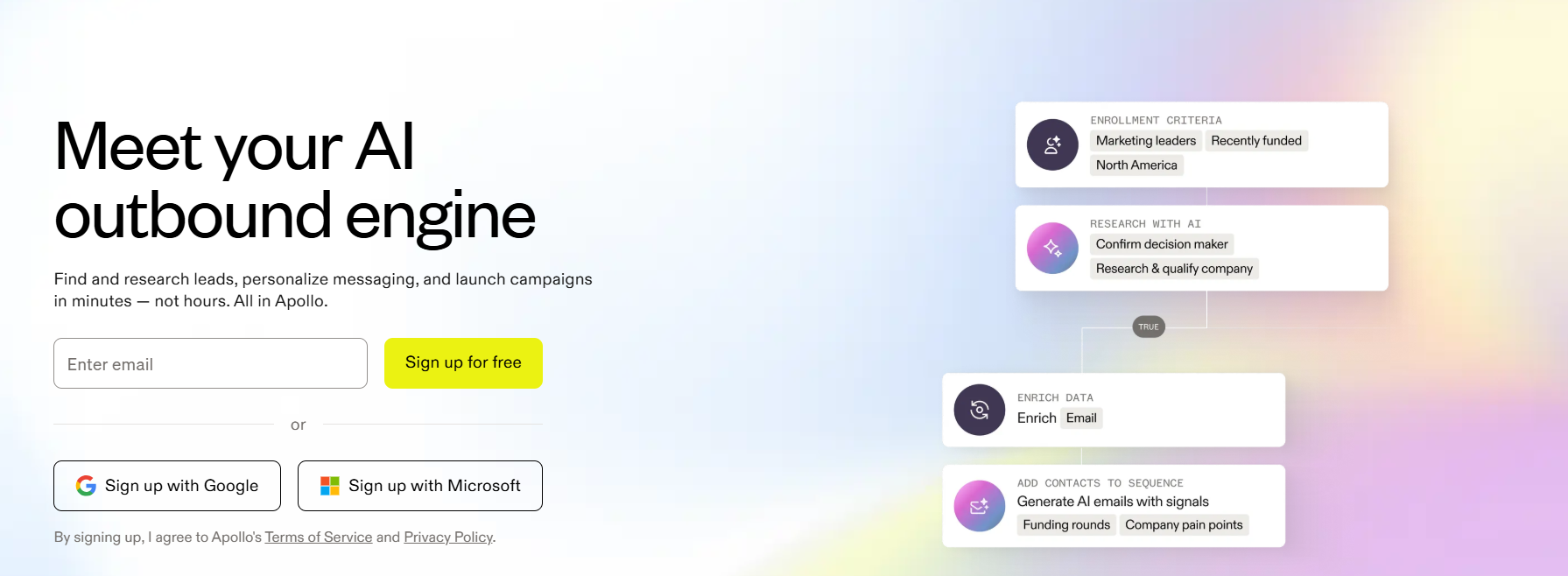
Sometimes prospects don’t respond on LinkedIn. Having a verified work email lets you follow up via email without breaking outreach momentum. Common options:
5. Optional Integrations
To make your LinkedIn Sales Navigator leads workflow seamless:
- HubSpot Integration – Automatically sync saved leads from Sales Navigator to your CRM.
- Zapier – Connect LinkedIn activity to other apps (e.g., log new connections into Google Sheets, trigger an email task in Gmail, etc.).
Having these tools ready before you start ensures you can focus on the actual outreach rather than chasing down missing data or manually copying information.
Step-by-Step LinkedIn Sales Navigator Workflow to Book Meetings
Let’s go through the Sales navigator workflow step one by by one in detail:
Step 1 – Define Your ICP (Ideal Customer Profile)

Before you touch Sales Navigator, get crystal clear on who you actually want to talk to. If your ICP is vague, your lists will be noisy and your outreach will flop.
This first step is the backbone of every repeatable B2B linkedin targeting strategy we run at Cleverly — and it’s where most teams either win or lose.
Use linkedin sales navigator filters intentionally: think of each filter as a gate. The tighter the gate, the fewer false positives you’ll get. Below we break down the four must-define dimensions and exactly how we think about them.
Industry — restrict to relevant business verticals
- Why: Industry narrows down buyers who face the same problems you solve. Targeting the right vertical increases relevancy and reply rates.
- How we pick: start with 1–3 core industries where you have proof (case studies, clients, or experience). Then add 1–2 adjacent industries that show similar buying behavior.
- Practical tips:
- Prefer specific industry tags (e.g., “SaaS / Computer Software” or “Financial Services”) over broad ones like “Business Services.”
- Exclude unrelated verticals up front to avoid noise (e.g., “Retail” if you sell enterprise software only).
- If you’re unsure, run a quick pilot: pull 50 profiles from the industry and audit whether 60–70% match your buyer persona.
- Prefer specific industry tags (e.g., “SaaS / Computer Software” or “Financial Services”) over broad ones like “Business Services.”
Company size — headcount and revenue proxies
- Why: Buying process and budget change dramatically with company size. A VP at a 50-person startup behaves differently than a VP at a 5,000-person enterprise.
- How we pick: Use company headcount as the primary proxy; revenue if you can access it. Common buckets we use:
- 11–50 (early-stage teams, founder-heavy)
- 51–200 (growing teams, budget-friendly deals)
- 201–1,000 (mid-market buyers, more stakeholders)
- 1,000+ (enterprise, longer sales cycle)
- 11–50 (early-stage teams, founder-heavy)
- Practical tips:
- Start narrow (one or two buckets) for early campaigns.
- If your offering requires exec sponsorship, target the larger buckets and add seniority filters.
- Watch for headcount anomalies (consultancies and agencies often list high headcount but low buying authority per business unit).
- Start narrow (one or two buckets) for early campaigns.
Job titles — focus on role, not exact wording
- Why: Titles vary wildly between companies. “Head of Growth,” “VP Marketing,” and “Director of Demand Gen” could all own the same decision.
- How we pick: Build role groups rather than single-title lists. For each buyer persona, list:
- Primary titles (decision-makers) — e.g., VP Sales, Head of Sales, Chief Revenue Officer
- Secondary titles (influencers) — e.g., Sales Ops Manager, Revenue Enablement Lead
- Avoid casting the net too wide with junior titles.
- Primary titles (decision-makers) — e.g., VP Sales, Head of Sales, Chief Revenue Officer
- Practical tips:
- Use Seniority level + Function filters in Sales Navigator together (e.g., Seniority = VP+ and Function = Sales) to capture title variations.
- Create a short “title synonyms” list and test which variants yield qualified profiles—then prune the poor performers.
- Exclude ambiguous or consulting titles that create noise (e.g., “Consultant,” “Advisor”) unless they’re a deliberate target.
- Use Seniority level + Function filters in Sales Navigator together (e.g., Seniority = VP+ and Function = Sales) to capture title variations.
Region — geography and timezone matters
- Why: Region affects language, messaging, availability for meetings, and sometimes legal/regulatory fit.
- How we pick: choose regions where you can reliably deliver, handle time zones, and where you have credibility. Options include country-level, metro areas, or multi-country regions (e.g., North America, EMEA).
- Practical tips:
- If your SDRs/bookers are US-based, start with North America or similar time zones to increase live call rates.
- For international campaigns, localize message hooks (metrics, currencies, compliance references).
- Use region as a gating filter in Sales Navigator and combine with company HQ location when appropriate.
- If your SDRs/bookers are US-based, start with North America or similar time zones to increase live call rates.
Step 2 – Use Advanced Filters to Build a Laser-Focused Lead List
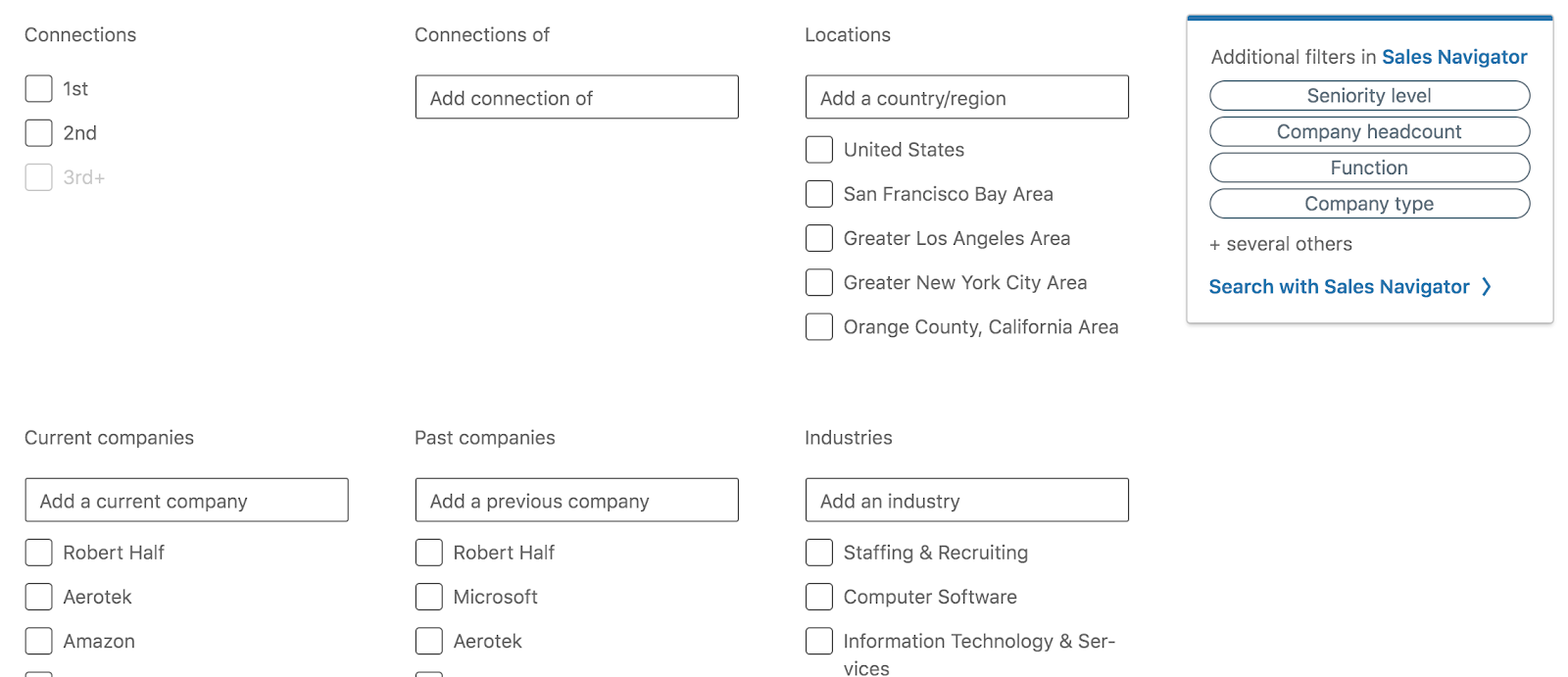
Once your ICP is set, the next step is turning that definition into an actionable list of LinkedIn Sales Navigator leads.
This is where advanced lead search features inside Sales Navigator do the heavy lifting. If Step 1 is “who you want,” Step 2 is “find them, exactly.”
1. Try AI-Assisted Search Before You Touch a Single Filter
Before you start stacking filters one by one, it's worth trying the newer way in. Sales Navigator's AI-assisted search lets you type your ICP in plain English instead of clicking through 30+ filter menus.
Example: "Find me VP-level marketing decision-makers at SaaS companies in North America who posted on LinkedIn in the last 30 days."
Sales Navigator reads a prompt like that and automatically selects the right search filters based on it, doing the work of translating casual language into a structured search.
Why this saves time: It gets you to a workable starting search in seconds instead of ten minutes of manual filter clicking. Useful when you're testing a new ICP segment or sanity-checking an idea before committing to a full list build.
Why you still need to review it manually: The AI is translating your words into filter selections, not reading your mind. It can:
- Misjudge seniority — mapping "decision-makers" to a band that's broader or narrower than what you meant.
- Guess at industry — selecting an adjacent LinkedIn industry tag instead of the one that actually matches your ICP.
- Miss exclusions — it won't automatically exclude "Consultant" or "Recruiter" titles unless your prompt spells that out.
How we use it at Cleverly: Type the plain-English prompt, then open the filter panel it generates and read every filter it selected, one at a time. Remove anything that doesn't match your ICP from Step 1, add the exclusions it missed, and only then run the search. Treat the AI's output as a first draft, not a final list.
2. Combine Filters for Precision
Sales Navigator has over 30+ lead filters and 15+ account filters. The magic happens when you layer them together to narrow the results without missing good prospects.
Some of our most effective combinations include:
- Seniority Level + Function + Industry
- Example: VP & C-Level + Marketing + SaaS
- Example: VP & C-Level + Marketing + SaaS
- Company Headcount + Geography + Job Title Keyword
- Example: 51–200 employees + North America + “Revenue Operations”
- Example: 51–200 employees + North America + “Revenue Operations”
- Posted on LinkedIn in Past 30 Days + Decision-Maker Titles
- Example: Active, engaged prospects who are more likely to see and respond to messages.
- Example: Active, engaged prospects who are more likely to see and respond to messages.
📌 Pro tip: Start broad with 2–3 key filters, then add more only if your list is too large or includes unqualified leads. Over-filtering too early can make you miss hidden opportunities.
3. Which Filters to Trust (and Which Produce Bad Data)
Not every filter in Sales Navigator is built on the same kind of data, and that matters more than most sales navigator workflow guides let on.
Filters that guess:
- Seniority Level — LinkedIn assigns this algorithmically based on job title, not something people select themselves. It also ranks titles in a way that surprises people: LinkedIn categorizes "Manager" as higher in seniority than "Senior," which is the opposite of how most people would rank the two.
- Function — also inferred, not self-selected. A hybrid title like "Head of Revenue Operations" can land in the wrong function bucket depending on how LinkedIn's model reads it.
A filter that reflects the wrong thing:
- Industry — this field relies heavily on self-reported data rather than the company's actual industry classification. Someone at a healthcare software company might have their profile industry set to "Hospital & Health Care" or "Computer Software" depending on what they typed in years ago, so the filter narrows on the person's stated field, not the company's real vertical.
A filter with no documented source:
- Technology filter — LinkedIn doesn't publish where this data comes from or how current it is. Treat any list built primarily on Technology as something to verify, not a final list.
What to build around instead: Title (with Boolean variations), Geography, and Company Headcount. All three pull from data that's either directly stated or structurally verifiable, which makes them far more dependable than filters running on LinkedIn's internal guesswork.
🤝 Cleverly Tip: If a search built mostly on Seniority and Function returns a list that feels off once you start reviewing profiles manually, it's usually not your ICP that's wrong, it's the filters doing the guessing. Rebuild around Title + Geography + Headcount and layer Seniority back in only as a light secondary filter, not the primary one.
4. Use Boolean Searches for Title and Keyword Variations
Job titles can be inconsistent, so Boolean logic helps you cover variations without bloating your search. Sales Navigator supports:
- OR – Include multiple variations of a keyword.
- Example: "VP Sales" OR "Head of Sales" OR "Chief Revenue Officer"
- Example: "VP Sales" OR "Head of Sales" OR "Chief Revenue Officer"
- AND – Require two terms to appear together.
- Example: "Marketing" AND "Automation"
- Example: "Marketing" AND "Automation"
- NOT – Exclude irrelevant profiles.
- Example: "Consultant" NOT "Recruiter"
- Example: "Consultant" NOT "Recruiter"
This keeps your advanced lead search flexible but relevant.
5. Save Leads and Accounts for Ongoing Tracking
When you find the right fit, don’t just download and forget. In Sales Navigator, you can:
- Save Leads – Individual people who match your ICP.
- Save Accounts – The companies you want to target (lets you see job changes, new hires, and company news).
- Get Alerts – Real-time updates when a saved lead changes jobs, posts content, or the account shares important news.
Why it matters: Saved leads/accounts turn Sales Navigator into a live database rather than a static list. You’re not starting from scratch every time, the platform continuously surfaces new LinkedIn Sales Navigator leads that match your saved parameters.
🤝 Cleverly Tip:
Before moving to Step 3, aim for a starting list of 300–500 high-fit leads. This is enough to run meaningful outreach sequences without overwhelming your team, and it gives you room to refine filters based on early reply rates.
Step 3 – Organize & Save Leads Efficiently
Finding the right prospects is only half the job. If you don’t store and organize them properly, you’ll waste hours re-running searches and risk double messaging people.
The way we manage and save LinkedIn leads at Cleverly ensures nothing slips through the cracks and every lead is easy to find when it’s time to reach out.
1. Use Account Lists for Company-Level Targeting
If you sell into specific organizations or verticals, start by saving accounts (companies) that fit your ICP.
- Why: This gives you a high-level view of the entire company, including new decision-makers that pop up over time.
- How we use it:
- Create lists by industry (e.g., Top SaaS Accounts – North America).
- Track company news, funding rounds, and hiring sprees — these are perfect triggers for outreach.
- Drill into the account to see all decision-makers, influencers, and recent hires.
- Create lists by industry (e.g., Top SaaS Accounts – North America).
2. Finding Warm Introductions with TeamLink
Before you send a cold connection request to anyone on your saved account list, check whether someone on your team already knows them.
TeamLink shows you when a colleague has a first-degree LinkedIn connection at one of your target accounts. Available on Sales Navigator Advanced, it pools your team's networks so that when a prospect is connected to a colleague, a "TeamLink Introduction" label appears on their profile.
How we use it:
- Open a saved account and check for the TeamLink label before doing anything else with that company.
- If a teammate is connected, send them a short internal note explaining who you want to reach and why. Specific asks get faster yeses: "I'd like an intro to Priya, VP Sales at Acme, about our LinkedIn workflow" works better than a vague request.
- Let your teammate make the intro rather than jumping straight to a cold InMail.
Why it's worth the extra step: Warm introductions consistently outperform standard cold outreach, with reply rates in many cases ranging from 30% to 70%, while traditional cold campaigns often struggle to pass the 10% mark. LinkedIn reports that TeamLink introductions get up to four times more responses than standard InMails.
Combining TeamLink with account lists: This is where Step 3's account lists earn their keep. Once you've built an account list for a target vertical, run it through TeamLink to see which accounts already have a warm path in. Prioritize those first, then fall back to cold connection requests and InMail for the rest. It's the same logic behind effective account-based marketing on LinkedIn: fewer, better-targeted accounts, reached through whichever channel gets you in the door warmest.
3. Create Lead Lists for Outreach Sequencing
When you find an individual contact that matches your ICP, save them to a Lead List.
- Why: Lead Lists let you organize prospects into outreach-ready batches without mixing them with unrelated contacts.
- How we use it:
- Break lists down by campaign (e.g., US – VP Marketing – SaaS).
- Keep each list size manageable — ideally 300–500 leads per campaign so you can run focused outreach.
- Use Lead List filters to sort by activity (e.g., posted in last 30 days) before sending messages.
- Break lists down by campaign (e.g., US – VP Marketing – SaaS).
4. Keep Lead Tracking on Sales Navigator Synced With Your CRM
Manually copying data is a fast way to make mistakes. Instead, sync your lists or export leads into your CRM so all outreach is tracked in one place.
- CRM Sync Options:
- HubSpot: Native integration lets you send saved leads/accounts directly to your CRM.
- Salesforce: Map fields so contact info stays clean and consistent.
- Pipedrive / Zoho: Use Zapier or a connector tool to push leads in automatically.
- HubSpot: Native integration lets you send saved leads/accounts directly to your CRM.
- Exporting Leads:
- If your CRM doesn’t integrate directly, export a CSV of lead details from Sales Navigator (through a tool like Apollo or Skrapp) and upload into your CRM.
- Always include profile URLs in your export so you can quickly return to their LinkedIn profile later.
- If your CRM doesn’t integrate directly, export a CSV of lead details from Sales Navigator (through a tool like Apollo or Skrapp) and upload into your CRM.
🤝 Cleverly Tip:
Name your lists with a clear, consistent format — [Region] – [Title] – [Industry]. This makes it easy to filter and report on campaign performance later. A well-organized save LinkedIn leads system also helps you recycle prospects into future campaigns without repeating work.
Step 4 – Engage with Your Leads Before Connecting
One of the easiest ways to increase acceptance rates and reply rates is to start the conversation before you send a connection request.
At Cleverly, we’ve found that light, intentional LinkedIn lead engagement can warm up even cold prospects — so when your request lands, you’re already on their radar.
1. Interact with Their Content
If your lead is active on LinkedIn, they’re likely posting, commenting, or sharing updates. Spend a few minutes engaging with that content:
- Like their recent posts to show interest.
- Share posts that align with your audience, adding your own brief perspective.
- Engage with shared company updates to position yourself in their professional circle.
This kind of warming up leads creates small, positive touchpoints that make your outreach feel less like a cold pitch and more like a continuation of a conversation.
2. Leave Thoughtful, Relevant Comments
A comment is more visible than a like and can help you stand out. The key is to add value — don’t just say “Great post.”
- Pull out one key idea from their post and expand on it.
- Ask a relevant follow-up question that invites dialogue.
- Relate their point to an insight or trend you’ve seen in your own work.
Example:

3. View Their Profile to Trigger Awareness
LinkedIn shows users who’s viewed their profile. Simply visiting your lead’s profile a day or two before sending a connection request can make your name more familiar.
This is subtle but works especially well when paired with content engagement.
4. Sequence for Pre-Outreach Warm-Up
Here’s how we typically sequence LinkedIn lead engagement before sending a connection:
- Day 1: Like or comment on a recent post.
- Day 2–3: View their profile.
- Day 4: Send a personalized connection request (covered in the next step).
This staggered approach increases the odds your name will be recognized, making your connection feel warmer and your message more likely to get read.
🤝 Cleverly Tip: Track engagement in your CRM or Sales Navigator notes so you know who’s been “warmed” and who hasn’t. Leads that have interacted with your profile or posts before you reach out consistently respond at higher rates.
Step 5 – Personalized Connection Requests
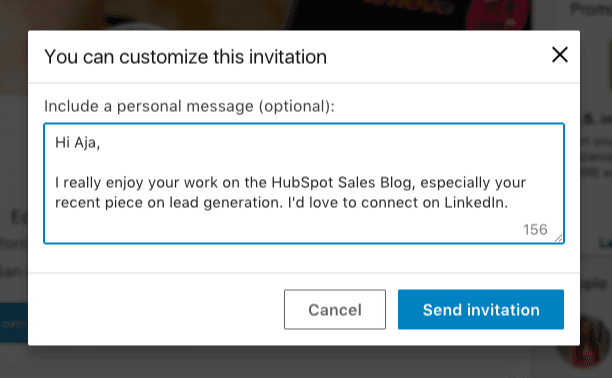
Once you’ve warmed up your lead, it’s time to reach out. A well-crafted connection request can be the difference between an accepted invite and getting ignored.
At Cleverly, we’ve tested thousands of personalized LinkedIn messages and know that short, relevant, and human wins every time.
1. Keep It Short and Relevant
Your prospect decides in seconds whether to accept, so skip the fluff. A good connection message is:
- Under 300 characters
- Relevant to them (role, company, content they posted, or shared connections)
- Zero sales pitch — your goal here is to connect, not sell
2. Personalization Framework
To make personalization efficient, we use this three-part formula:
- Context – Why you’re reaching out (shared interest, mutual connection, content they posted).
- Relevance – Link your outreach to their role, company, or industry challenge.
- Soft CTA – Invite them to connect without pressure.
3. Connection Message Tips
- Avoid generic “I’d like to add you to my network.” It shows no effort.
- Reference something specific they’ve done — a recent post, company milestone, or shared event.
- End with a friendly, open-ended question or statement that encourages acceptance.
4. First-Touch Message Templates
⭐ Template 1 – Content-Based Connection
“Hi [First Name], I saw your recent post on [topic] and found your take on [specific point] really interesting. Would love to connect and follow more of your insights.”
⭐ Template 2 – Shared Network/Interest
“Hi [First Name], I noticed we’re both connected to [mutual contact] and work in [shared industry]. Always happy to connect with fellow [role/industry] professionals.”
⭐ Template 3 – Industry Relevance
“Hi [First Name], I work with [type of companies] in [industry] and saw your role at [company]. Thought it’d be great to connect and share perspectives.”
🤝 Cleverly Tip: Track acceptance rates per template in your CRM. Over time, you’ll see which connection message tips resonate with specific industries, roles, or regions. We’ve seen a 20–35% lift in acceptance rates simply by tweaking the first line for each campaign.
Step 6 – Post-Connection Messaging Sequence
Once your connection request is accepted, the real work begins. Too many people rush into a pitch immediately, but with high-value LinkedIn Sales Navigator leads nurturing, your goal is to build enough trust and interest to make a meeting the obvious next step.
Here’s the three-message follow-up sequence we use at Cleverly for consistent, high-quality B2B meeting bookings:
Message 1 – Thanks + Value Intro (Sent within 24–48 hours of connection)
Purpose: Acknowledge the connection, briefly introduce yourself, and set a helpful, non-sales tone.
Example:
“Thanks for connecting, [First Name]! I work with [type of companies] in [industry] to [brief value statement without selling]. I’ve been enjoying your posts on [topic] — curious, what’s your focus for [specific quarter/year]?”
Why it works:
- Builds rapport without asking for anything.
- Opens space for them to share priorities, giving you conversational leverage for future messages.
Message 2 – Soft CTA with a Case Study or Resource (Sent 3–5 days after Message 1)
Purpose: Provide value and subtly show credibility through relevant proof.
Example:
“By the way, we recently helped [similar company or industry peer] [specific result, e.g., ‘book 22 sales meetings in 60 days’] using a LinkedIn outreach approach. Here’s a quick breakdown if you’re interested: [link to short case study or resource].”
Why it works:
- Establishes authority without heavy pitching.
- Puts results in context your lead can relate to.
- Gives them something actionable to review.
Message 3 – Direct Meeting Booking CTA (Sent 4–6 days after Message 2)
Purpose: Transition from conversation to a booked meeting, with a clear and easy next step.
Example:
“Thought I’d see if this could make sense for [Company Name]. If it’s worth exploring, happy to share the full workflow we used for [similar client’s result]. Does a quick 15-min chat next week work for you?”
Why it works:
- Clear value proposition tied to results they care about.
- Simple yes/no question removes decision friction.
- Positions the meeting as a knowledge share, not a hard sell.
🤝 Cleverly Tip: Space your messages out and keep tone casual. If there’s no reply after Message 3, we often re-engage 30–45 days later with a fresh hook — like a new case study or relevant industry update. Nurturing LinkedIn Sales Navigator leads over time keeps you top-of-mind when they’re ready to buy.
Step 7 – Move Hot Leads to Your CRM or Outreach Flow
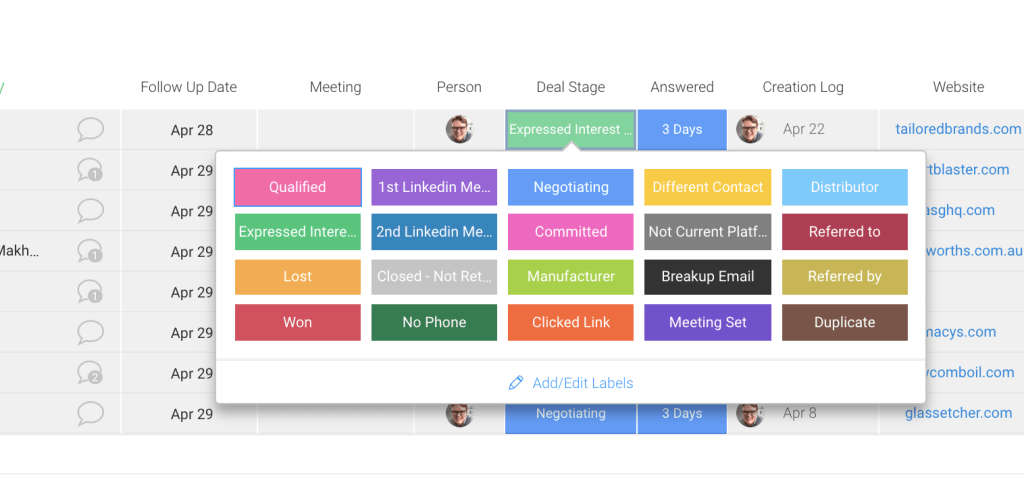
Once a prospect shows interest — whether they reply positively, ask for more details, or agree to a meeting — they’re no longer just a name in Sales Navigator.
They’re now a “hot” lead, and your priority is to get them into your sales process without losing momentum. This is where LinkedIn leads to CRM integration becomes critical.
1. Track Responses in Real Time
You should be monitoring LinkedIn messages daily so no reply sits for more than 24 hours. At Cleverly, we:
- Tag leads in Sales Navigator or LinkedIn messages based on reply type (Interested, Not Now, Not a Fit).
- Add internal notes with context — what they responded to, any pain points mentioned, and potential objections.
- Immediately update the CRM to keep sales, SDR, and marketing teams aligned.
2. Shift Channels When It Makes Sense
While LinkedIn is great for initial conversations, some prospects prefer other communication channels for scheduling or deeper discussions.
- Move to Email: If they ask for more details or request documents, send them over email so you can attach files and CC relevant teammates.
- Move to Phone or Video Call: If they’re warm and ready to discuss, send a scheduling link (Calendly, HubSpot Meetings, Chili Piper) to lock in a time.
- Rule of Thumb: We typically move hot leads to email or calls within 1–2 exchanges after clear interest is shown. This keeps the deal moving while they’re engaged.
3. Booking the Meeting
- Use a scheduling link with your real-time availability to avoid back-and-forth.
- Include a short description of what the meeting will cover to set expectations (e.g., “Walk through how we helped [similar company] book 20+ B2B meetings in 60 days”).
- Confirm attendance the day before — either through LinkedIn, email, or a calendar reminder.
4. Tracking Content Engagement with Smart Links
Once a lead is warm enough to receive your case study or deck (Message 2 in the sequence back in Step 6), don't just attach it as a plain file or link. Package it as a Sales Navigator Smart Link instead.
A Smart Link lets you package and share content from your Sales Navigator workflow while tracking viewing behavior and gaining insight into what your prospects are most interested in. It bundles a PDF, deck, or URL into one trackable hyperlink you can drop straight into your LinkedIn message.
What it tells you:
- Who opened it, whether they're a logged-in LinkedIn user or an anonymous viewer who left their name and email to see it.
- How long they spent on the content, so you can tell a two-second glance from someone who actually read the case study.
- Whether it was forwarded, which shows up as a second viewer on the same link. That's often a sign more than one stakeholder is now involved.
How this fits the sequence: After sending Message 2 with a Smart Link instead of a plain attachment, watch the analytics for a day or two before sending Message 3. If the lead opened the link and spent real time on it, that's your cue to send the meeting CTA sooner and reference the content directly ("Saw you had a chance to look at the case study, thought a quick call made sense"). If there's no activity yet, it's worth waiting a couple of extra days rather than pushing the CTA into silence.
🤝 Cleverly Tip: Multiple viewers on one Smart Link inside a short window is one of the clearest buying signals you'll get on LinkedIn. Treat it the way you'd treat a saved account showing a hiring spree, as a trigger to reach out while interest is fresh.
For a deeper walkthrough of setting these up, see our guide on LinkedIn Smart Links.
5. Integrating with Your Outreach Flow
With outreach integration, your CRM becomes the single source of truth for every lead, whether they came from LinkedIn, email, or another channel.
- HubSpot / Salesforce: Sync LinkedIn data directly so new leads are auto-enrolled into nurture workflows if they don’t convert immediately.
- Zapier Automations: Automatically push new LinkedIn leads or tag updates into your CRM, email sequences, or Slack alerts for your sales team.
- Outreach Tools (Outreach.io, Apollo, Lemlist): For leads that didn’t book yet but showed some engagement, drop them into a multichannel nurture campaign combining LinkedIn touches, email, and calls.
🤝 Cleverly Tip: Always close the loop. Every LinkedIn lead to CRM transfer should include notes, lead source tags, and the exact messaging they responded to. This gives your sales team context to personalize follow-ups and improves targeting for future campaigns.
🚀 From Searches to Sales Calls
Don’t just find prospects—book meetings with them. Our done-for-you LinkedIn campaigns make it happen.
Results We’ve Achieved Using This Workflow
We’ve run this exact workflow for years, across thousands of campaigns, and the numbers speak for themselves. At Cleverly, we don’t just talk about high-quality B2B meetings, we deliver them.
Using our precise targeting, structured engagement, and proven messaging sequences, we’ve helped 10,000+ clients connect with decision-makers at some of the most recognized companies in the world, including:
- Amazon
- Google
- Uber
- PayPal
- Slack
- Spotify
The impact? Our LinkedIn outreach results have generated:
- $312 Million in pipeline revenue
- $51.2 Million in closed revenue directly through LinkedIn outreach
- Thousands of booked meetings with qualified prospects across industries
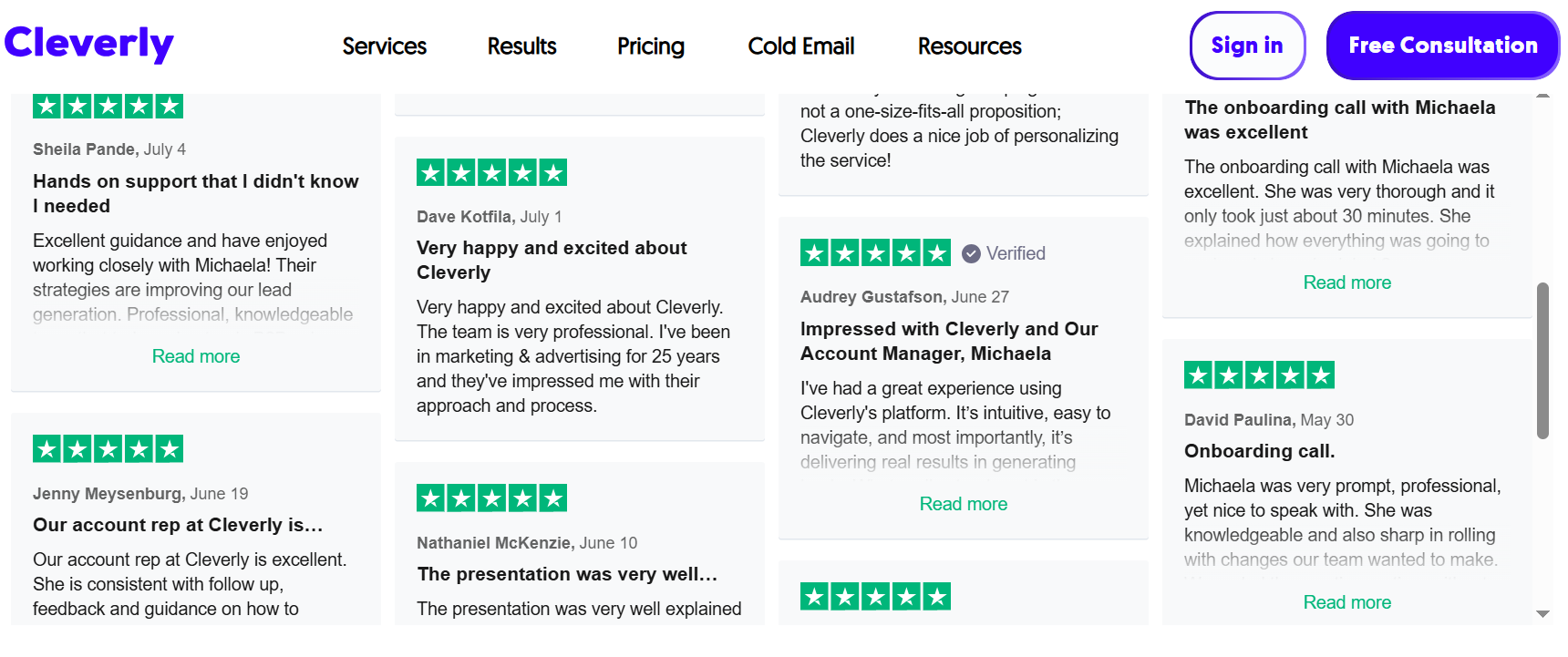
If you want the same results, more booked meetings with the exact buyers you care about, our team can run this workflow for you from start to finish. You get the meetings, we handle the heavy lifting.
→ Let’s turn your LinkedIn profile into a predictable meeting-booking machine.
Frequently Asked Questions
Free Resource
How to Scale a Profitable Cold Call System
Get the complete guide — download it instantly now.
Free Ebook
Download the Free Guide
Enter your details to get instant access.
You're all set! 🎉
Your ebook is downloading now.
Click below if the download didn't start automatically.